Google Forms Emails: pipiform Setup and iPhone Use
In this guide
Configure Form Notifications by pipiform on a computer, then receive the resulting emails in your iPhone inbox. You can send your team the submitted details, acknowledge the respondent, or route an enquiry according to an answer. The desktop add-on creates the workflow; your email app receives its messages.
This tutorial is published by pipiform, the maker of Form Notifications and Forms for Google Drive.
Install Form Notifications · View features and plans
This guide uses a workshop enquiry form to show the complete setup. If you only need a basic alert that a response arrived, the native Google Forms option near the end may be enough.
Choose what should happen after a submission
| Your goal | pipiform setup |
|---|---|
| Tell your team what was submitted | Fixed To recipient and relevant answer markers |
| Send the respondent next steps | Custom message and Notify Form Respondent |
| Keep a coordinator informed | CC or BCC where appropriate |
| Direct different enquiries to different teams | Conditional recipient rule and fallback |
Start with one workflow so you can recognize its result. For our example, a respondent submits a workshop request and receives an acknowledgement explaining when the team will reply.
1. Install and open the add-on
Install Form Notifications using the Google account that owns or edits your form. Open that form on desktop and choose Add-ons → Form Notifications for Google Forms™ → Open App. Choose Create → Email Notification.
If the installed add-on is missing, check the signed-in account and follow the add-on menu guide. Configuring a Workspace add-on from the desktop editor is different from reading its email on an iPhone.
2. Write the message people should receive
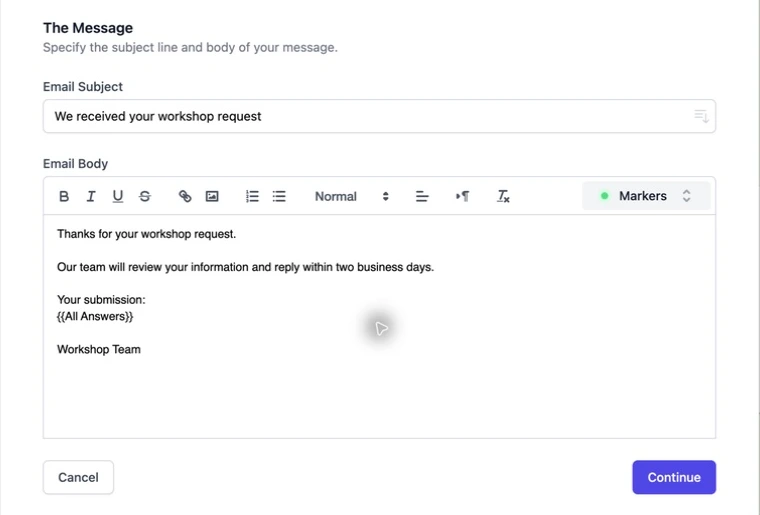
Give the notification a useful internal name. Set a recognizable sender display name and a clear subject. In the message body, explain what happened and what happens next.
3. Select recipients
Click Continue. Enter a fixed team inbox in To if staff should receive the message. For a respondent acknowledgement, enable Notify Form Respondent and choose the question containing the respondent’s email address.
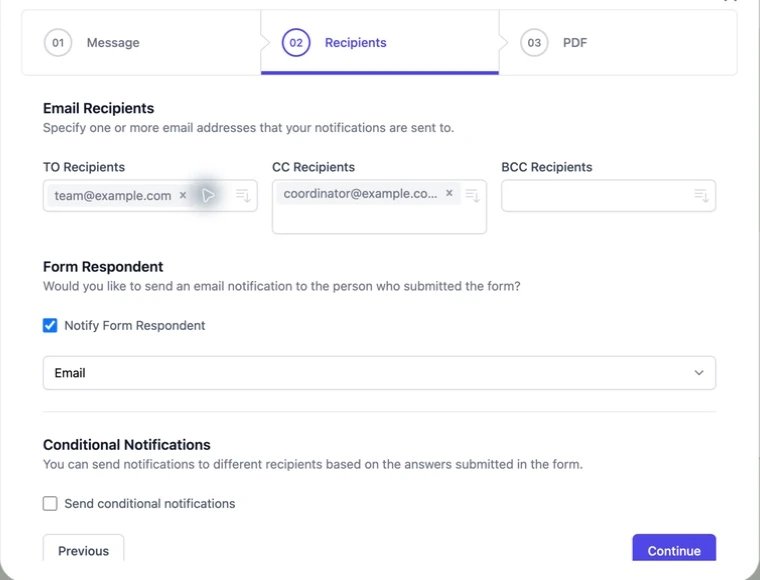
For different audiences, use separate messages rather than sending internal instructions to a respondent. See multiple recipients and conditional routing for those setups.
4. Save and receive a test on your iPhone
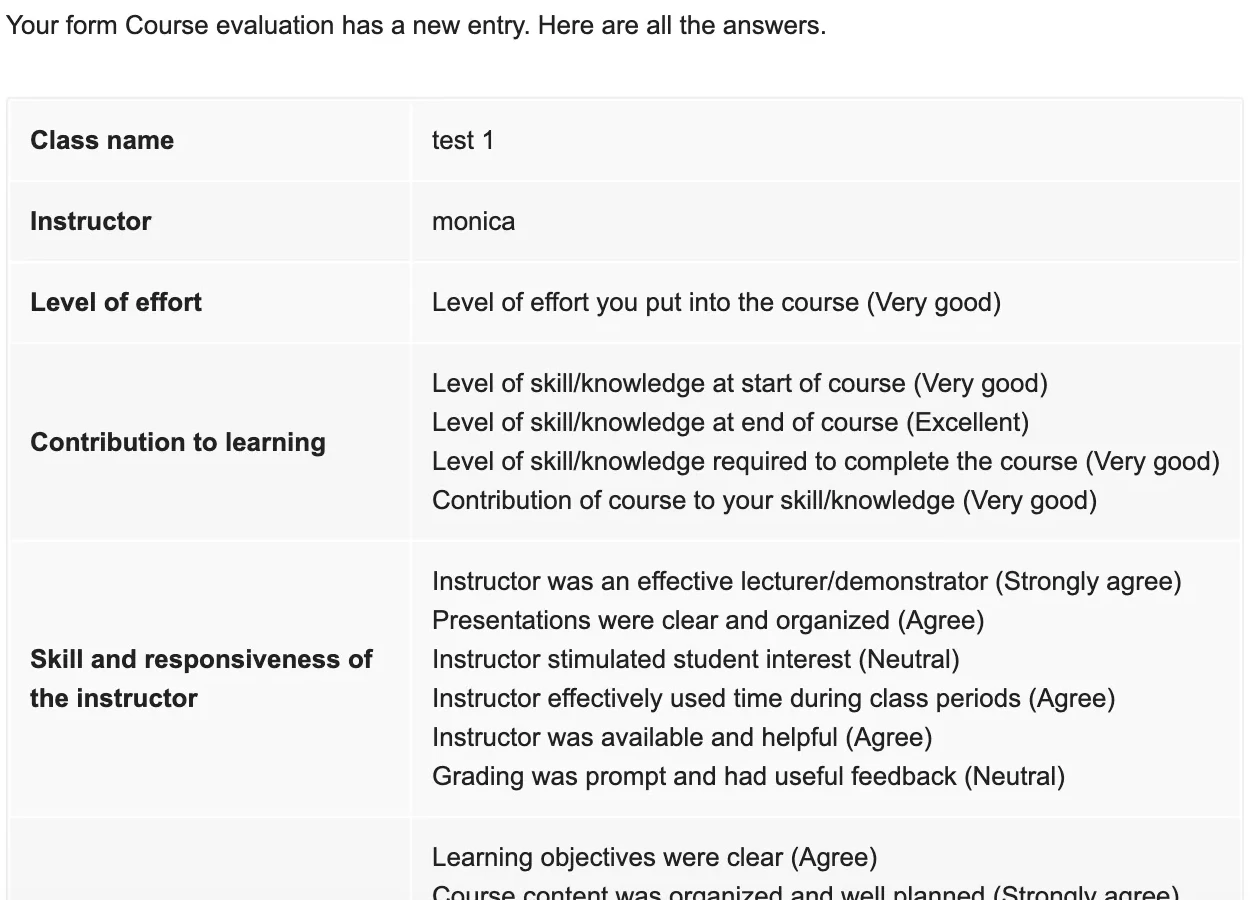
Save the workflow and submit a fictional response using an inbox you can check on the phone. Open the email and confirm that its subject, submitted details and next step are readable on the smaller screen.
In our controlled tutorial test, a recipient confirmed an email with the submitted name and workshop comment. Email delivery and an iPhone push alert are separate: Mail or Gmail also needs notifications enabled in iOS, and Focus or email-app settings can suppress a push alert even when the email exists.
Review the underlying response in the pipiform app
If you want to manage the form or review its responses away from your computer, Forms for Google Drive provides the separate iPhone/iPad workflow. That is useful when an email prompts you to check more information in the form.
The app does not replace the desktop notification editor. Choose the add-on for the email automation and the app for mobile form work; their subscriptions are separate.
Google’s built-in option for a simple owner alert
In the desktop Forms editor, open Responses → More → Get email notifications for new responses. This is useful when you only need a basic new-response alert. Google’s response-management help explains the native controls.
pipiform becomes useful when the alert needs a custom subject and body, respondent-specific delivery, multiple recipients or answer-based routing.
Do respondents need the pipiform app?
They do not need the iOS app merely to receive an email from your notification workflow. They submit the form and read the resulting message in their email inbox.
Why do I see the response but no email?
Check the saved workflow, recipient mapping, conditions and sending allowance, then spam. The delivery troubleshooting guide follows that order.
Can I acknowledge the respondent and notify staff?
Yes. Use an appropriate shared message with the relevant recipients, or separate workflows when staff and respondents need different information.
Try it with your own form
Set up one acknowledgement or team alert, submit a test and read it on your phone. Add routing only when the simple workflow is working.
Install Form Notifications · Review the product and pricing
Form Notifications has a limited free mode of 20 emails per day. Check the current plan for recipient limits and paid options before using a large mailing workflow.
For managing forms and reviewing responses on iPhone or iPad, use the separate Forms for Google Drive app. It complements the desktop add-on workflow; an app subscription does not unlock the add-on. The app is US$59.99/year with a 3-day trial, subject to the offer in your App Store region. View the app on the App Store.