Google Forms Add-ons Not Showing? Check the Menu & Account
In this guide
If a Google Forms add-on is missing, open the form’s editor on a computer and check the account used to install it. The respondent form does not show the editor’s add-on controls. Installing an add-on and opening an installed add-on also use different menus.
Find the right fix for the missing add-on
| Problem | First check |
|---|---|
| You only see questions and a Submit button | Open the editable form from Google Forms or Drive with an account that can edit it. |
| You want to install an add-on | In the desktop form editor, open More (three dots) → Add-ons to browse Marketplace. |
| The add-on is installed, but you cannot find it | Use the puzzle-piece Add-ons button in the editor toolbar, then select the product. |
| Marketplace and the editor show different Google accounts | Open the form using the account that installed the add-on. |
| Your work or school account blocks the installation | Ask the Workspace administrator whether that specific add-on is permitted. |
| The panel opens but stays blank | Read any authorization error and check the browser issue described below. This is different from a missing menu. |
The checks below apply before reinstalling. The screenshots use pipiform products to show where an installed add-on opens.
1. Check that you are editing the form
A creator’s editor has Questions, Responses and Settings tabs. A respondent page displays questions to answer and a Submit button; it is not the place to configure an add-on.
Open the form from your Drive or Forms home page with an account that can edit it. Use the desktop editor for the setup demonstrated here. If you are on iPhone, you can return to mobile form work after configuring the add-on on a computer.
2. Open the installed Add-ons menu
Look for the puzzle-piece Add-ons button in the editor toolbar. Open it and select the installed product.
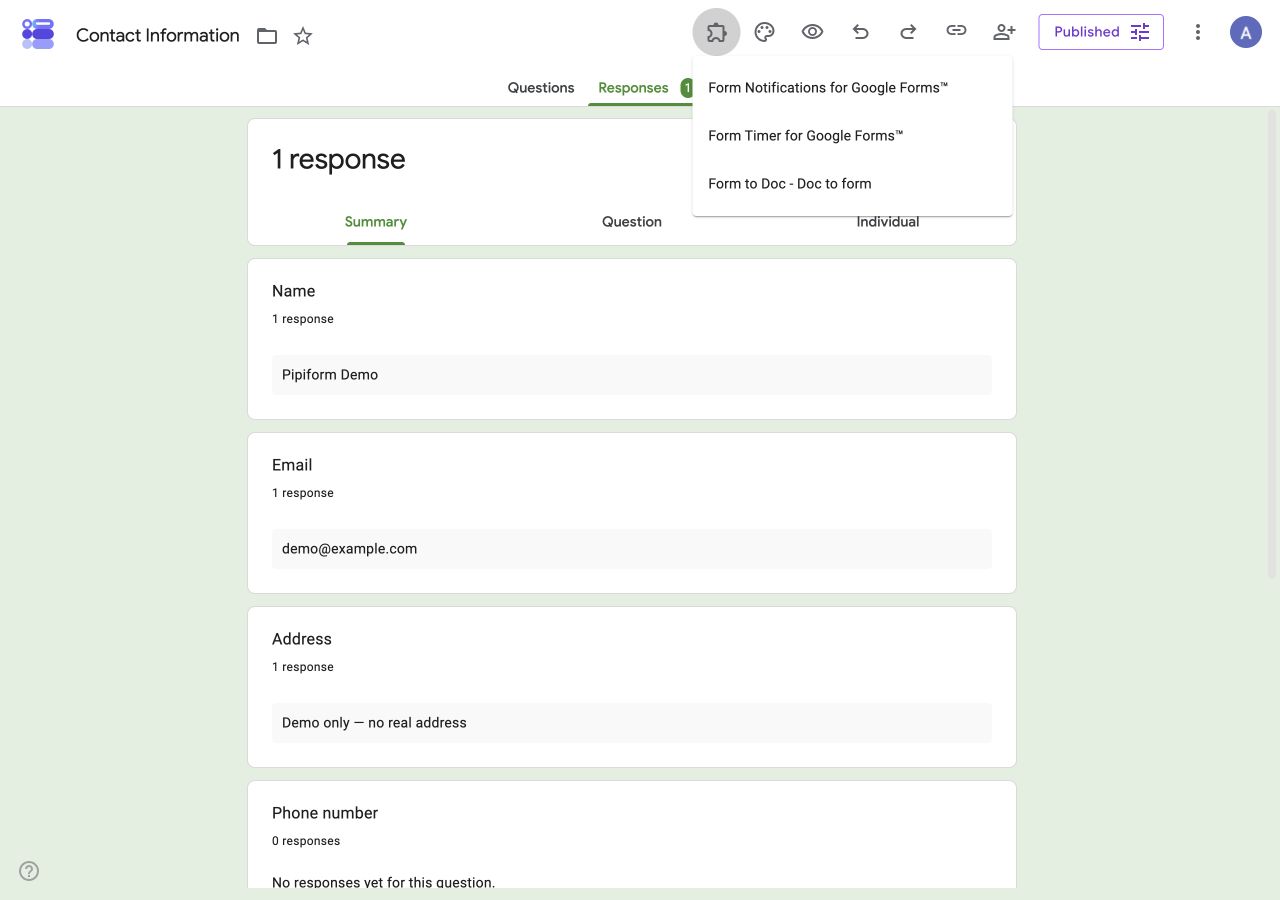
Actual desktop menu from the tutorial form. The installed display names can differ slightly from the product-page names.
| Product you want | Entry used in our editor | Next action |
|---|---|---|
| Email automation | Form Notifications for Google Forms™ | Open App |
| Individual countdown | Form Timer for Google Forms™ | Open |
| Document exports | Form to Doc - Doc to form | Open |
If the product is not installed, use its own Marketplace listing: Notifications, Timer, or Form to Docs.
3. Check the Google account before reinstalling
Compare the account used for the Marketplace installation with the account active in the form editor. Multiple signed-in Google accounts can lead you to install in one account and edit in another.
Open the correct account’s form and try the menu again. If a Workspace administrator restricts Marketplace add-ons, ask the administrator about approval for the specific product. Do not repeatedly reinstall or broaden permissions without knowing which account needs access.
Google’s add-on instructions explain installation and opening add-ons on a computer.
4. Confirm you reached the correct product screen
Form Notifications: create an email workflow
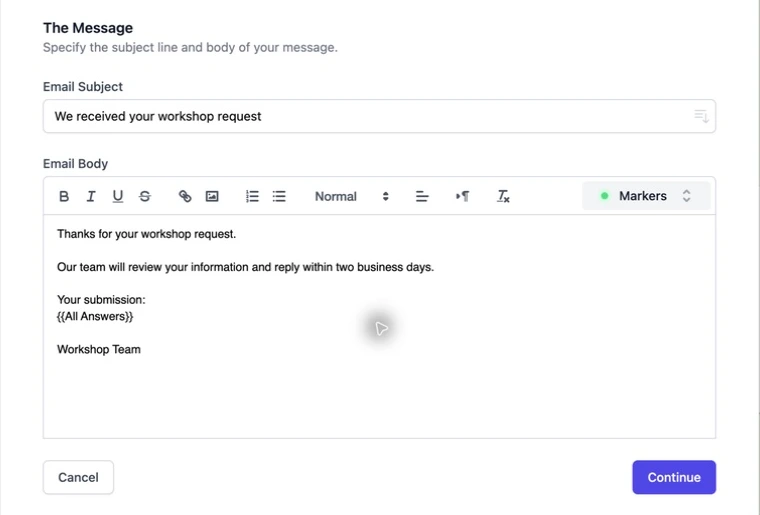
Choose Create → Email Notification. You should reach message settings with a subject and body editor, then recipient controls. A useful first task is a simple acknowledgement to a test inbox.
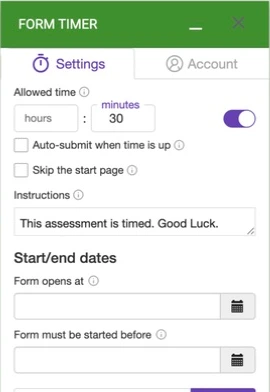
Form Timer: set Allowed time
The Settings panel includes Allowed time, an optional auto-submit checkbox and instructions. Configure a short rehearsal, then use PREVIEW and COPY LINK.
Form to Docs: choose the export content
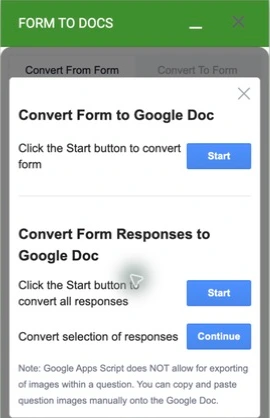
Select Convert From Form → To Doc. Choose questions, all responses or selected responses by the operation heading. The first Start button is for the form’s questions.
If the panel opens but does not finish loading
Allow the current opening action to finish. If the interface displays an account authorization or error message, read that message before retrying. Close the add-on panel and reopen it after confirming the correct account and form.
Google notes that some add-ons need third-party cookie support. If the panel is blank, review the official add-on troubleshooting guidance and any browser message before changing settings. Follow your organization’s browser policy.
If the problem persists, capture the error and contact pipiform support with the product name and the action that failed. Avoid including private response data in the screenshot. A panel that opens but shows an allowance limit is a different issue from an add-on missing from the menu.
What about the iPhone app?
Forms for Google Drive is pipiform’s separate app for managing forms and reviewing responses on iPhone or iPad. It does not place the desktop Workspace add-on menu inside the app, and its subscription does not unlock the separate add-on plans.
Is “Get add-ons” the same as opening an installed add-on?
No. The Marketplace is for finding and installing a product. After installation, open that product from the form editor’s Add-ons menu.
Why can I receive an email without seeing the add-on menu?
Receiving a notification is a respondent or recipient action. Configuring its workflow requires access to the creator-side editor and add-on.
Should I remove the add-on and start again?
Check the editor, account and administrator restrictions first. Reinstalling is not the first fix for a form opened in the wrong account.
Try it with your own form
Once the menu opens, complete one useful workflow: a confirmation email, a short timed practice form or a document export. The linked guides take you through that product’s next steps.
Install Form Notifications · Review the product and pricing
Form Notifications has a limited free mode of 20 emails per day. Check the current plan for recipient limits and paid options before using a large mailing workflow.
For managing forms and reviewing responses on iPhone or iPad, use the separate Forms for Google Drive app. It complements the desktop add-on workflow; an app subscription does not unlock the add-on. The app is US$59.99/year with a 3-day trial, subject to the offer in your App Store region. View the app on the App Store.