Route Google Forms Emails by Answer with pipiform
In this guide
Route a Google Form response to the right inbox based on an answer. Form Notifications by pipiform includes conditional recipients, so a workshop enquiry can go to the workshop team while other enquiries go to a general inbox.
This tutorial is published by pipiform, the maker of Form Notifications and Forms for Google Drive.
Install Form Notifications · View features and plans
The example below uses Comments contains workshop. It is a practical starting point for enquiry routing: one condition, one specialist inbox and one fallback. We use fictional addresses in the draft screenshots.
Start with an answer that identifies the request
A multiple-choice “Request type” question is useful when you need predictable categories. An existing free-text question can also support a rule such as Comments contains workshop, but respondents may describe the same request with different words.
For this tutorial, the form already contains Name, Email and Comments. We will use Comments to demonstrate the controls without changing the form’s questions.
1. Create the email that the team should receive
Open the form on a computer. Choose Add-ons → Form Notifications for Google Forms™ → Open App → Create → Email Notification. Use an internal name such as “Workshop enquiry routing.”
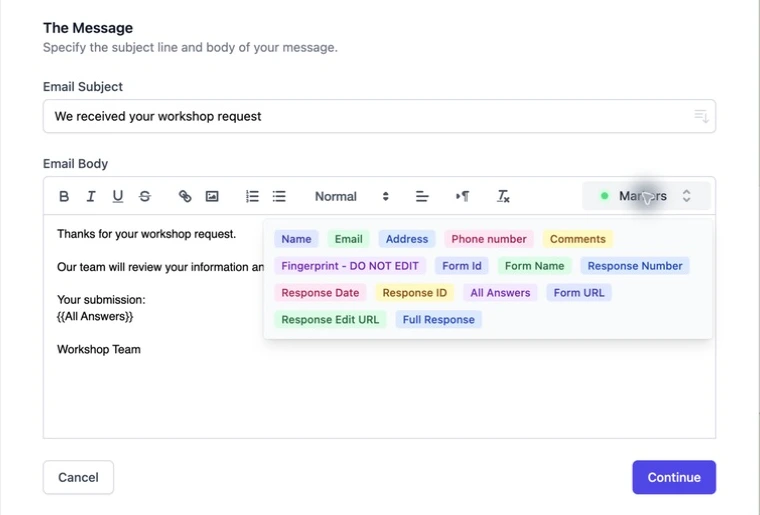
Write a subject such as “New enquiry for your team.” Add the Name, Email and Comments fields through Markers, or use All Answers for a response summary. Explain the action expected of the receiving team.
2. Open conditional notifications
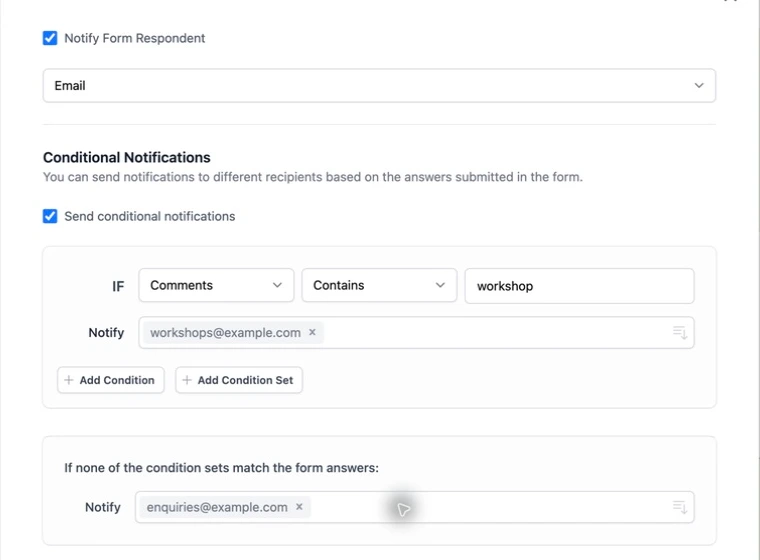
Click Continue to reach recipients and enable the conditional-notification option. In the rule, select Comments as the form question, choose Contains, and enter workshop as the matching value.
Set the matching recipient to your workshop inbox. In the fallback field for responses that do not match, enter your general enquiry inbox.
| Rule component | Example value | Purpose |
|---|---|---|
| Question | Comments | The answer to examine |
| Operator | Contains | Match a word within a longer answer |
| Value | workshop | The topic identifying this route |
| Matching recipient | workshops@example.com | Specialist team |
| Fallback recipient | enquiries@example.com | Catch enquiries that do not match |
Replace both example addresses before saving. Also review fixed To/CC/BCC recipients: an unconditional recipient may receive copies in addition to the conditional route. Keep only the routes you intend.
3. Test a matching answer and a fallback answer
Save the workflow and submit two fictional enquiries to inboxes you can inspect:
- Matching: “Please send the workshop information.” Confirm that the intended specialist inbox receives the message.
- Unmatched: “I have a general question.” Confirm the fallback delivery.
Then try a longer answer and the capitalization your users are likely to type. Do not assume that a keyword rule recognizes synonyms or every variation of a word. If “class,” “training” and “workshop” should be treated identically, use explicit categories or additional tested rules.
The screenshot shows an actual configured draft in pipiform. We did not send emails from that example.com draft. Delivery tests should use your controlled inboxes and the final saved rule.
Apply the same pattern to other workflows
| Form | Routing idea | Why it helps |
|---|---|---|
| Event enquiry | Workshop requests to the event team | The person who can answer sees the request |
| Customer support | Product category to its support inbox | Less manual forwarding |
| School contact form | Topic to the relevant office | One public form can serve several teams |
| Sales enquiry | Region or service to the appropriate team | Clear ownership from the start |
Keep the initial version small. One reliable condition plus a fallback is easier to maintain than a large set of overlapping rules.
Add a separate acknowledgement for the respondent
Routing a team alert and confirming receipt are different jobs. You can add a respondent confirmation with its Email-field mapping and a short next-step message. Keep internal instructions out of that customer-facing email.
When a basic notification is enough
If the same person handles every response and only needs an alert, Google Forms’ built-in new-response notification may be sufficient. pipiform is useful when the answer determines who should act or when you need a custom message alongside that routing.
Can I use an exact category instead of a keyword?
Choose the question and matching operator exposed by your rule editor. A fixed-choice category is easier to test than unrestricted text; verify the selected value and delivery with a sample response.
What happens when two rules match?
Test that overlap deliberately before publishing the form. Do not assume a first-match-only behavior unless your configured workflow confirms it.
What if no email arrives?
First check that the submitted answer matches the saved condition, then check the fallback, fixed recipients and sending allowance. Use the troubleshooting guide to isolate the failure.
Try it with your own form
Choose the one enquiry category your team currently forwards by hand. Build its route and fallback, then test both before adding more conditions.
Install Form Notifications · Review the product and pricing
Form Notifications has a limited free mode of 20 emails per day. Check the current plan for recipient limits and paid options before using a large mailing workflow.
For managing forms and reviewing responses on iPhone or iPad, use the separate Forms for Google Drive app. It complements the desktop add-on workflow; an app subscription does not unlock the add-on. The app is US$59.99/year with a 3-day trial, subject to the offer in your App Store region. View the app on the App Store.