Google Forms Timer Auto-Submit: Set Up pipiform and Test It
In this guide
Form Timer by pipiform has an “Auto-submit when time is up” option for its timed Google Forms workflow. To use it, enable that checkbox, distribute the generated timed link and rehearse expiry with your form. Setting a duration alone does not enable automatic submission.
This tutorial is published by pipiform, the maker of Form Timer and Forms for Google Drive.
Install Form Timer · View features and plans
This guide is for creators who want a clear end to a timed practice quiz or assessment. It shows the setting and a small test plan you can complete before inviting participants.
1. Check the form before adding expiry behavior
Preview your questions, required fields and sections in Google Forms. Make sure a person can manually complete the form first. If the underlying form has a broken path or impossible required question, a timer will not fix it.
If another add-on adds helper fields, keep those fields intact unless that product’s instructions tell you otherwise. Our test form contains a Timer helper field used by the timed workflow.
2. Open the Timer Settings panel
On desktop, choose Add-ons → Form Timer for Google Forms™ → Open. Under Allowed time, choose a short rehearsal duration, such as one or two minutes. Keep the real 30-minute allowance for after testing.
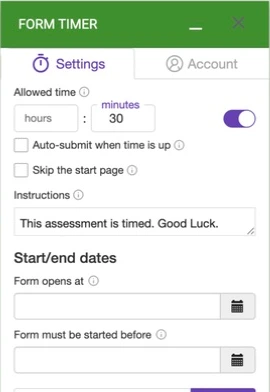
3. Write instructions that match the saved settings
Keep the start page when respondents should see instructions before beginning. Explain the time allowance, required answers and how to contact the organizer if completion fails.
A draft for a tested workflow could read:
You have 10 minutes for this practice activity.
Complete the required questions before time runs out.
You can submit early when finished.
If you see an error, contact the organizer and include the time of the attempt.
Add a statement about automatic submission only after your rehearsal confirms the behavior you intend. Avoid promising that every incomplete answer will be saved regardless of validation or connectivity.
4. Open PREVIEW and use the timed link
Use PREVIEW to inspect the start experience. Use COPY LINK for the link you will share with respondents. Run the expiry test through that link rather than through Google Forms’ ordinary preview or an old invitation.
A common reason for an “auto-submit did not work” report is that the respondent opened the untimed Forms link. Check the invitation before changing the settings.
5. Rehearse a complete answer set
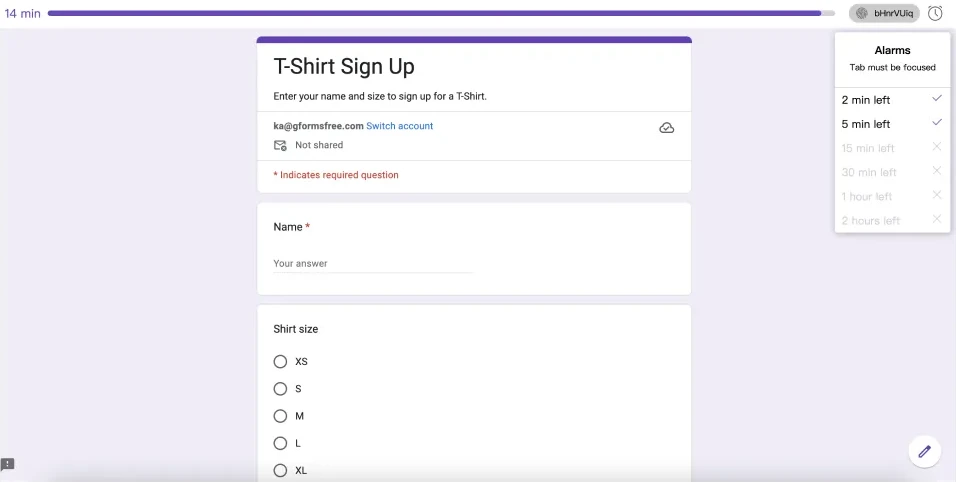
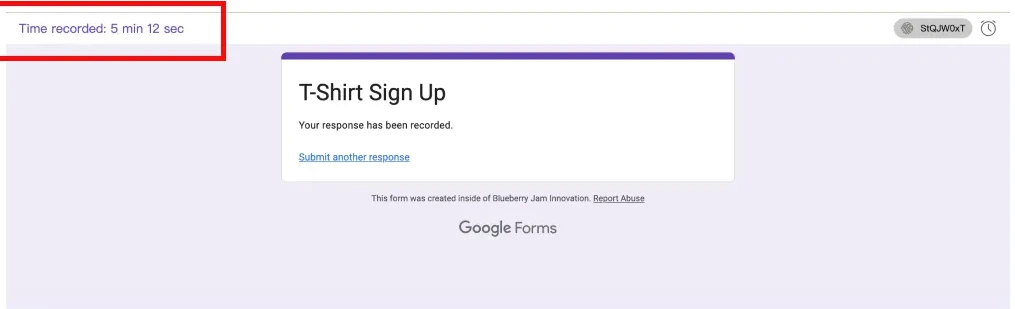
Start one fictional attempt, fill all required answers and let the time run out. Record what the timed page shows. Then return to Responses in Google Forms and confirm whether the expected submission is present.
The result you care about is the saved response, not just a countdown reaching zero. Review one distinctive answer so you know you are checking the correct attempt.
6. Rehearse incomplete answers and the target device
Start another test with a required answer missing. Observe whether the form requests that answer or handles expiry differently. If the form uses sections, include a test that reaches the later sections. For iPhone participants, run the timed link on an iPhone as well.
| Rehearsal | What to confirm |
|---|---|
| Complete answers, let time expire | Expected response appears in Forms |
| Required answer missing | The visible error and whether a response was saved |
| Submit early | Response is saved before expiry |
| Actual participant device/browser | Questions and timing remain usable |
Our earlier supplied-form test verified a visible countdown and a manual submission. The checkbox and setup path here were inspected in the live add-on; we are not presenting those earlier manual results as an automatic-expiry test.
Move from rehearsal to the real activity
Set the real duration, review the instructions, and copy the final timed link. If you use Form opens at or Form must be started before, test those availability settings too. A latest-start setting is different from telling every running attempt to finish at one shared clock time.
For a reusable activity, keep a short record of the tested form, duration and device. The practice-quiz example provides a concrete question set to start from.
When to use a native closing date instead
If your only requirement is to close an event registration at Friday 5 p.m., Google Forms’ native closing date is the simpler route. Choose pipiform when you need an individual countdown and the optional auto-submit workflow. See deadline versus per-person timer.
Can I rely on auto-submit without a rehearsal?
Rehearse your actual required questions, sections and participant device first. This also tells you what instructions or fallback process your audience needs.
Is auto-submit included when I only set minutes?
No. The duration and the auto-submit checkbox are separate controls. Review both before sharing the link.
Try it with your own form
Set up a short timed rehearsal and check the resulting response in Forms. After that passes, use the same workflow with your real allowance.
Install Form Timer · Review the product and pricing
Form Timer is free on one form. Pro is US$80/year (about US$6.67/month billed annually) or US$10/month.
For managing forms and reviewing responses on iPhone or iPad, use the separate Forms for Google Drive app. It complements the desktop add-on workflow; an app subscription does not unlock the add-on. The app is US$59.99/year with a 3-day trial, subject to the offer in your App Store region. View the app on the App Store.