How to Edit Google Forms on iPad (2026 Guide)
Can You Edit Google Forms on iPad?
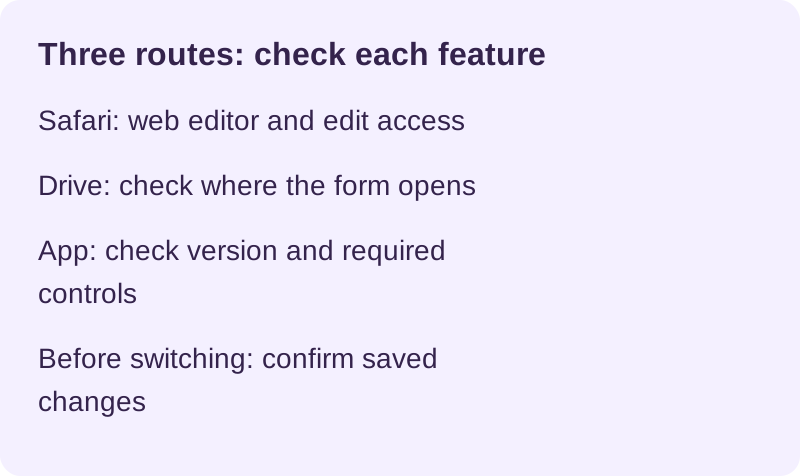
Safari provides the Google Forms web editor for accounts with edit access. Drive can help locate an existing form, but its handoff may vary. A third-party app may support a different set of operations; do not assume complete feature parity or immediate synchronization.
The larger screen can leave more room for questions and reference material. This guide does not report a new physical-device test. Check layout, keyboard behavior and multitasking on your own iPad and software version.
Throughout this guide we’ll cover all three methods, the editing limits that apply on every iPad method, and the iPad-specific troubleshooting that trips people up most.
Method 1 — Edit in Safari (forms.google.com)
Editing in Safari is the fastest method on iPad and requires no installation. Open Safari, go to forms.google.com, sign in, and tap the form you want to change — Google’s mobile web editor handles the rest.
Step-by-step
- Open Safari on your iPad.
- Type
forms.google.comin the address bar and press Go. - Sign in with the Google account that owns the form (or one with edit access).
- Your recent forms appear on the home screen. Tap the one you want to edit.
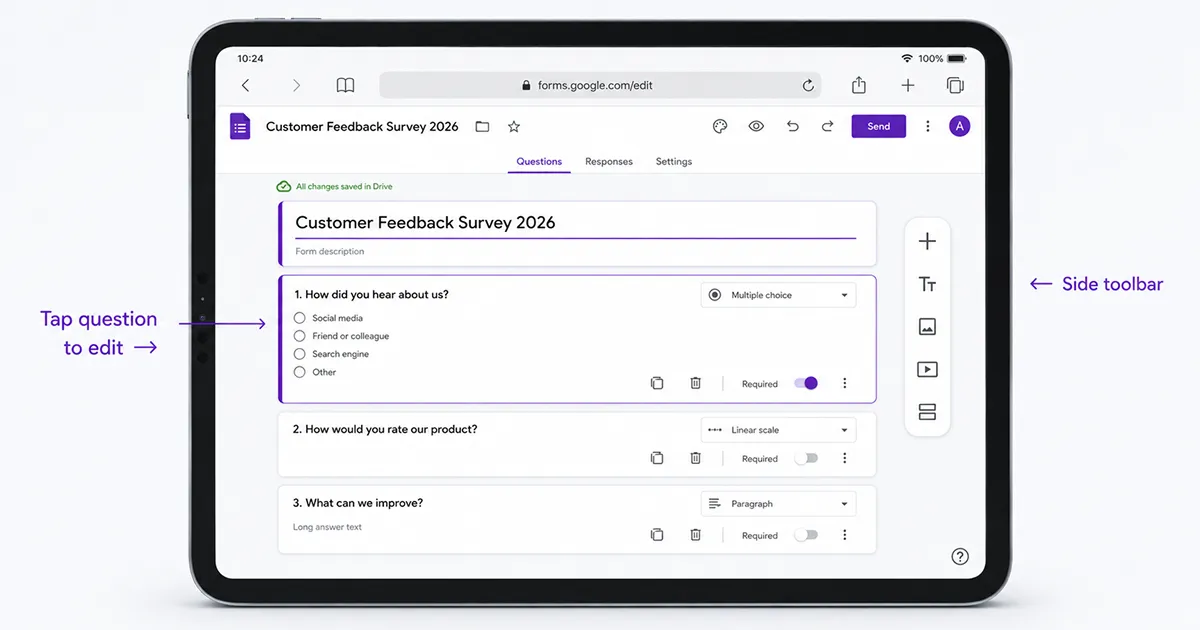
- Tap any question to change its text, options, or type. Use the + in the side toolbar to add a new question, and the section, image, or video icons to add other elements.
- Edits autosave silently. Wait for the “All changes saved in Drive” indicator before you close the tab — there is no manual save button.
iPad-specific tips
The iPad has multitasking features the iPhone doesn’t, and a few of them genuinely improve the editing experience:
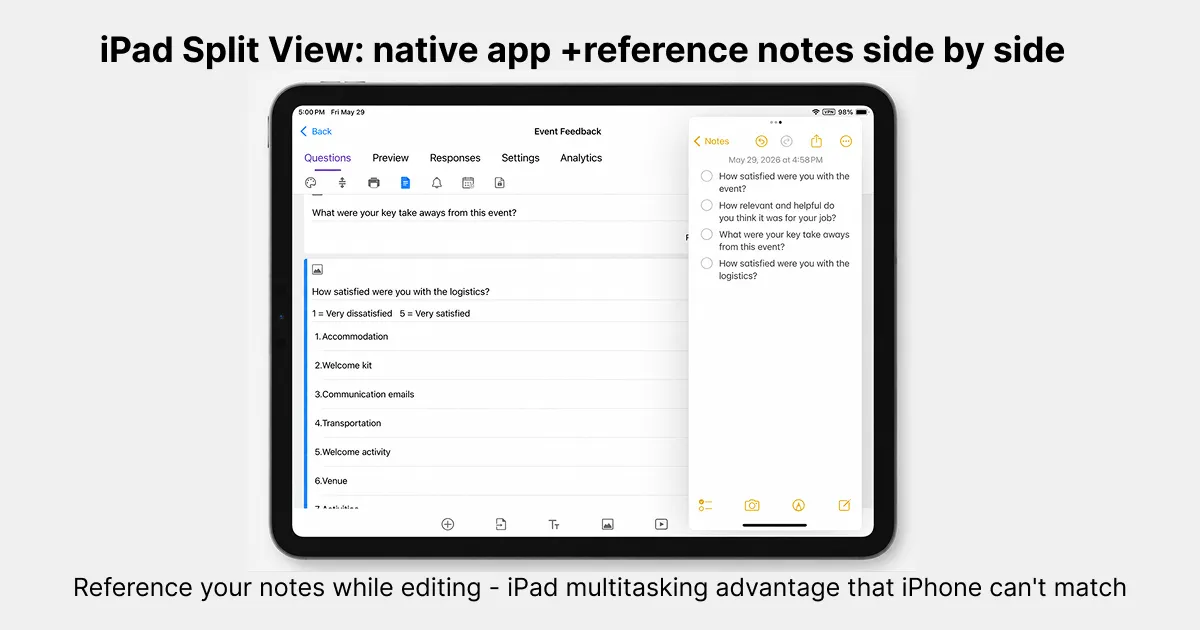
- Side-by-side work. Use the multitasking controls available on your iPadOS version to keep reference material beside the form. Instructions for older Split View do not necessarily match newer windowed-app controls.
- Windowing and Stage Manager. Available modes depend on iPad model and iPadOS version. Use Apple’s current instructions for your device and test the editor at the intended window size.
- Hardware keyboard shortcuts. With a Magic Keyboard or any Bluetooth keyboard attached, standard text shortcuts work in the editor: ⌘C/⌘V to copy question text, ⌘Z to undo, and Tab to move between fields. The on-screen keyboard also disappears, which fixes the field-coverage problem described below.
- Pointer / trackpad. The Magic Keyboard trackpad gives you a precise cursor, which makes hitting the small drag handles and the three-dot menus far easier than tapping with a finger.
Method 2 — Edit Through the Google Drive iPad App
Use Drive to locate the form, then check whether it opens an editor, a preview or an external browser. Do not assume every Drive version uses the same embedded editor.
Step-by-step
- Install Google Drive from the App Store and sign in.
- Navigate to where the form is stored, or sort by Last modified to find a recent one.
- Tap the form and inspect where it opens. If you see only a preview, open its editor in Safari with the account that has edit access.
- Edit using the controls available in the opened editor, and wait for a save confirmation before closing or changing apps.
How this differs from iPhone
The larger screen may help, but opening behavior and controls depend on the installed versions. For creation, use the web editor when Drive does not offer the required action. Our iPhone form-creation guide also explains the basic web workflow.
Method 3 — Edit With a Dedicated iOS App
Forms for Google Drive by pipiform offers an alternative mobile interface. Review the requested OAuth permissions and supported operations. After editing, verify the online form; OAuth is an authorization mechanism, not a guarantee of immediate sync or every feature.
Step-by-step (using Forms for Google Drive)
- Download Forms for Google Drive from the App Store. A 3-day free trial is included, then it’s a paid subscription.
- Open the app and sign in with the Google account that owns your forms.
- Tap the form you want to edit from your form list.
- Edit questions with the native iOS interface — drag to reorder, swipe to delete, long-press for options.
- After reconnecting or editing, check the app’s status and verify the online form before sharing it. Do not assume every change is already synchronized.
Where the iPad version shines
A native interface may suit a particular workflow; check its actual layout and supported controls instead of inferring capability from the app being native.
- Editing layout. Inspect the current app at your chosen window size; do not assume every version has a side-by-side editor.
- Multitasking. Test the app under the windowing mode available on your device. Native apps can also have layout limitations.
- Apple Pencil + Scribble. You can use the Pencil to tap into a field and handwrite question text, letting iPadOS Scribble convert it to typed text. (Note: this is iPadOS doing the conversion, not the app adding a handwriting layer — see the FAQ.)
- Offline preparation. Test supported operations with a disposable form, reconnect and verify the online copy. This does not enable offline submissions through a Google Forms respondent link.
Safari is a useful starting point for occasional editing. Before choosing a paid app, test the particular operation you need, its connectivity requirements and the current offer.
Comparison: Which Method for iPad?
Compare each method on your own device. The table identifies checks rather than promising identical behavior across software versions. This guide is published by pipiform, the maker of the app discussed.
| Dimension | Safari (forms.google.com) | Google Drive iPad app | Forms for Google Drive (pipiform) |
|---|---|---|---|
| Edit forms | Requires edit access | Check editor opened | Check supported operations |
| Screen layout | Web layout | Depends on editor opened | Check current version |
| Multitasking | Test window size | Test window size | Test window size |
| Offline preparation | Do not rely on offline saving | Check editor opened | Test operations and sync |
| Apple Pencil / Scribble | Check field and language support | Check field and language support | Check field and language support |
| Reorder questions | Test drag controls | Test opened editor | Test app controls |
| Response-count cap | Published form settings | Opened editor settings | Check available controls |
| Per-respondent countdown | Separate timer workflow | Separate timer workflow | Check app controls |
| Push notifications | Check notification options | Check notification options | Test permissions and delivery |
| Date/time picker | Google’s documented iOS limitation | Check editor and iOS limitation | Test current version |
| Cost | No extra Google editor charge | No extra Drive app charge | Check App Store offer |
| Form editor provider | Google through Drive | pipiform, a third party |
Drive is an entry point whose opening behavior should be checked. Scribble is an iPadOS input feature, with device, language and field support to verify; it is not a special handwriting layer added by Forms.
What You Can and Can’t Edit on iPad
Form editing requires editor access and supported controls. Separately, respondents may edit their own submitted answers when the owner allows it and they have the relevant edit link. Editing a linked Sheet does not change the original Forms response.
What you can edit on iPad:
- Question text, help text, and question type
- Answer options (add, remove, reorder choices)
- Required toggles, validation rules, and points (for quizzes)
- Sections, section breaks, and basic branching (“go to section based on answer”)
- The form’s theme: header color, background, and font (basic theming works; full custom image headers may still prefer desktop)
- Sharing and collaborator settings, the confirmation message, and response collection settings
What’s limited or unavailable on iPad:
- Submitted answers. Use an authorized response-editing workflow when enabled. Changing a cell in the linked Sheet does not rewrite the original answer in Forms.
- Date/time picker. Follow the current iOS limitation in Google’s documentation and test the published form; do not infer the same behavior for every app from its name.
- Workspace add-ons. Plan installation and configuration in the computer workflow. A native app is a separate product and does not automatically supply the same add-on functions.
- Deep theme customization — uploading a custom header image is more reliable on desktop.
Test the required questions, settings and respondent flow before relying on the iPad workflow. Response-editing permissions and add-on setup are separate checks. The Google Forms iOS app guide explains the available app options.
Troubleshooting iPad Editing Issues
Connection, account permissions, keyboard position and window size are useful checks. These are troubleshooting possibilities, not a diagnosis that every problem has one of four causes.
Saving does not complete. Check connectivity and the save status before closing. Verify the online copy after reconnecting; do not switch apps assuming an unsaved edit will transfer. See the iPhone troubleshooting guide for further checks.
Account or access error. Confirm which account has editor access. Try the intended account in a separate browser session if necessary; do not assume Drive will automatically resolve account conflicts.
The keyboard covers the input field. On iPad, the on-screen keyboard can push up over the field you’re editing, especially in landscape. Attach a hardware keyboard (the on-screen one disappears entirely), scroll the field back into view after the keyboard opens, or rotate to portrait for more vertical room.
Narrow-window layout. Enlarge the editor window or try full screen and check again. Both web and native apps may behave differently at small widths; use the multitasking controls for your iPadOS version.
The “Edit” controls are missing. You likely opened a view or response link, not the edit URL. Open the form from forms.google.com directly, or ask the owner to grant you edit access under the form’s collaborator settings.
Continue from iPad editing to a document copy
On iPhone and iPad. Use Forms for Google Drive when you want a native iPad workspace for creating, editing, and reviewing forms. Keep the browser preview in your checklist: the respondent experience is what you ultimately need to verify.
With the Workspace add-on. For a document handoff on a computer, Form to Docs by pipiform can export the questionnaire or its responses. Choose questions for a review copy of the form, and responses for completed answers. An exported document is a snapshot, not a live replacement for your form.
View Form to Docs and its features · Install the add-on · Get Forms for Google Drive on the App Store
The app and Workspace add-ons are separate pipiform products. Forms for Google Drive is US$59.99/year with a 3-day trial; check the App Store offer for your region. For Form to Docs, check the free allowance in your account; Premium is US$49.20/year or US$8/month, with separate one-time bundles. See current product pricing before subscribing.
Summary
Start with Safari, or locate the file in Drive and check the editor it opens. If using Forms for Google Drive, test the specific operations and verify synchronization. Larger screens and multitasking can help, but capability varies. Confirm saved changes before switching tools; a switch is not a guarantee against data loss.
Frequently Asked Questions
Can I edit Google Forms offline on iPad?
Do not rely on the web editor saving without connectivity. If using an app's offline preparation workflow, test the supported operations and verify the online copy after reconnecting. Local edits and received respondent submissions are different things.
Does the date picker work on iPad Safari?
Google's iPhone/iPad instructions currently list the date and time picker as unsupported. Test the published form on the intended devices; an explicit text format or a different device may be needed for the workflow.
Can I use Apple Pencil to edit Google Forms?
Partially. Apple Pencil works for tapping, selecting, and Scribble-to-text inside text fields on iPad, so you can handwrite question titles and have iPadOS convert them to typed text. But Google's mobile editor has no native handwriting or annotation layer, so you cannot draw on the form or sketch question logic — the Pencil acts as a pointer and a Scribble input, nothing more.
Is editing Google Forms on iPad better than on iPhone?
The larger screen may make questions and reference material easier to view, but the preferred setup depends on the person, window size and software. Test the controls you need rather than assuming the feature set is identical.
Can I edit form responses, not just questions, on iPad?
If response editing is enabled, a respondent can use the appropriate edit link subject to access requirements. The owner's response view is a separate interface. Editing cells in the linked Sheet changes that spreadsheet, not the original response stored in Forms.
Why does my keyboard cover the input field on iPad?
Try scrolling the field into view, changing orientation, widening the window or using a hardware keyboard. Keyboard visibility and behavior depend on settings and the app; verify the result rather than assuming one accessory always fixes it.
Do I need a Google account to edit a form on iPad?
Yes. You must be signed into the Google account that owns the form, or one that has been granted edit access. If you only have a view or response link, you cannot edit the form — ask the owner to add you as an editor under the form's collaborator settings first.