Make a Google Forms Workshop Report with pipiform
In this guide
Turn workshop responses into a document your team can review with Form to Docs by pipiform. Use the response-export route to start from submitted answers, then add a short findings section and clear follow-up actions. The export supplies the record; you decide what the feedback means.
This tutorial is published by pipiform, the maker of Form to Docs and Forms for Google Drive.
Install Form to Docs · View features and plans
This workflow is useful when a facilitator or colleague wants a readable document instead of scrolling through a response spreadsheet. It also keeps the source answers separate from your interpretation.
1. Define the report’s scope
Choose the workshop, response period and audience. A facilitator’s internal review can contain more operational detail than a summary sent to attendees. If only selected submissions belong in the report, identify them before starting the export.
A simple feedback form might ask about clarity, usefulness, the most useful topic and what to change next time. If you also collect contact details, include them in the report only when the reader needs them.
2. Open pipiform’s response export
In the desktop form editor, choose Add-ons → Form to Doc - Doc to form → Open → Convert From Form → To Doc.
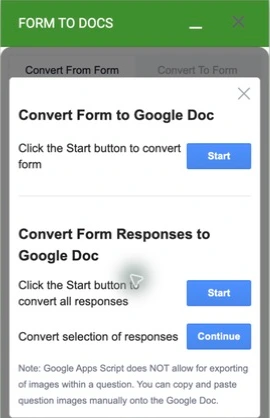
Confirm the expected submissions in Forms’ Responses tab and check the conversion allowance in your account. Follow the selected operation, then open the output document. Start with a small useful set so the content is easy to verify.
3. Check the record before writing conclusions
Compare a few exported entries with the original answers. Check long comments, blank optional fields and the question labels. If your form includes fields created by another add-on, remove irrelevant operational material from the document copy, while keeping the source form intact.
Our earlier verified export created a blank-question Google Doc. The current account has no free conversions left, so the fresh screenshot above documents the available response-export controls; it is not a claim that we generated a new workshop response report during this revision.
4. Add a one-page findings section
Place your interpretation before the detailed answer record. Use a structure the team can act on:
Workshop feedback review
Workshop: [name and date]
Responses reviewed: [actual count and scope]

What worked
- [Theme supported by responses]

What to improve
- [Specific issue and supporting evidence]

Actions before the next session
- [Action] — [owner] — [due date]

Appendix
- Reviewed response record
Use actual counts from the response set, not invented percentages. If five of twelve people mention pacing, say that; do not generalize it to every attendee. Label quotations and remove identifying details when they are unnecessary.
5. Turn observations into concrete actions
Here is a fictional example of how to write the action section. It is a template, not a result from our test form:
| Observation in the responses | Follow-up action | Owner |
|---|---|---|
| Participants wanted more practice time | Shorten the introduction and add an exercise | Facilitator |
| Joining instructions were unclear | Rewrite the invitation and check the link | Coordinator |
| Several people requested the slides | Send the approved resource link | Organizer |
Avoid letting the report become a second dump of the same answers. The value of the summary is making the next decision easier.
6. Share an editable or fixed copy
Keep the Google Doc for collaborative edits. For a colleague using Word, choose File → Download → Microsoft Word (.docx). For a fixed reading copy, choose PDF and review its page breaks before distributing it.
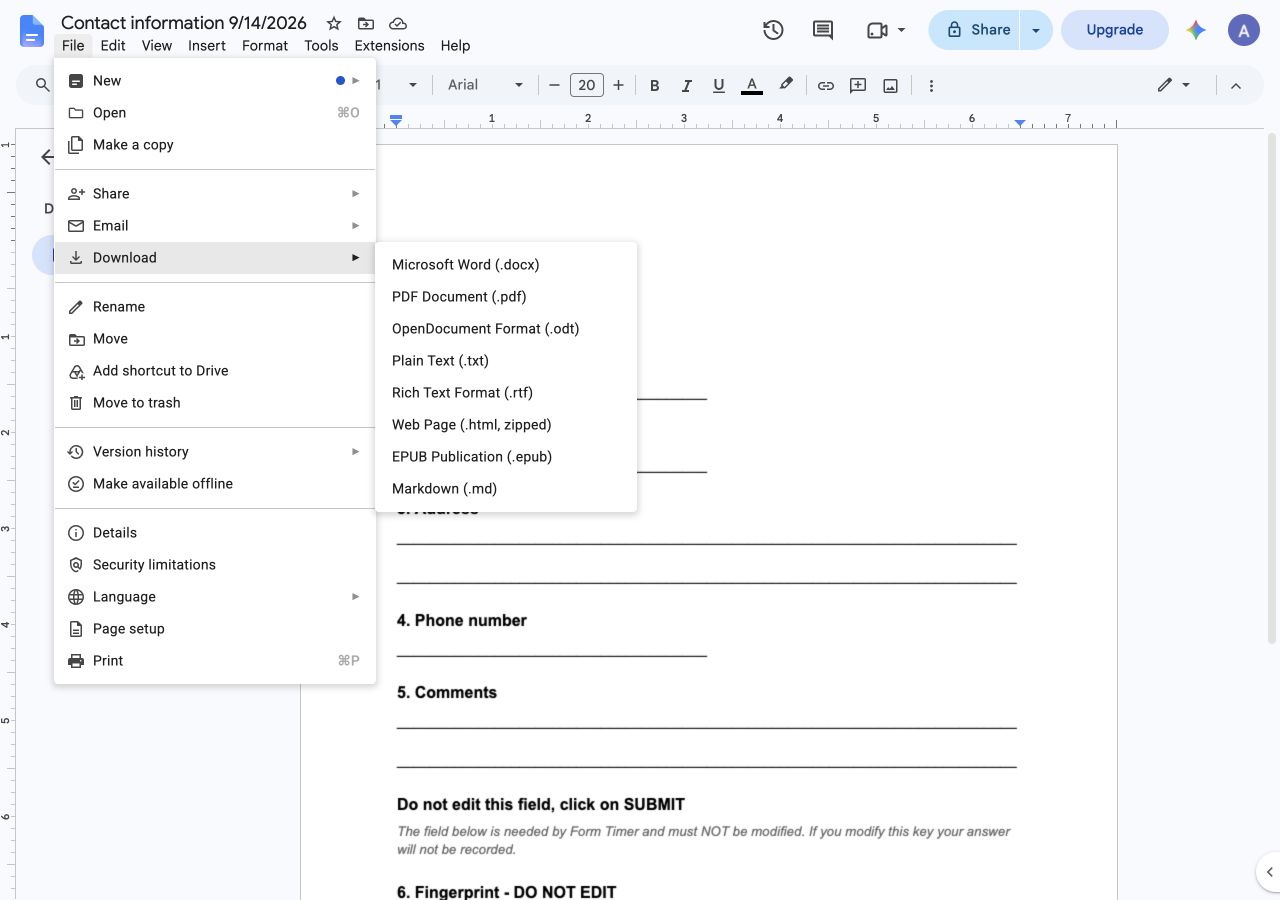
Actual download menu from the earlier generated Google Doc. The menu is the handoff step after you have prepared your report.
The Docs and Word export guide explains the difference between questions and responses in more detail.
Add an acknowledgement to the next feedback form
If attendees should receive a thank-you or resource instructions after submitting feedback, configure a separate Form Notifications by pipiform confirmation. That email workflow complements the report; it does not automatically generate this edited analysis.
For checking responses while away from your desk, use the separate Forms for Google Drive app. The desktop document add-on remains the export route shown here.
When a spreadsheet is the better tool
Use Google Forms’ native spreadsheet connection when you need sorting, formulas or charts across many entries. Use Form to Docs when the next person needs a readable, editable document. A report can contain both: a checked numerical summary and a document appendix of relevant comments.
Does the add-on write the findings for me?
The export route shown here creates document content from the form or responses. The analysis and action plan in this tutorial are an editorial step you add afterward.
Should I export every response?
Only when the report’s scope needs them. A selected set can make a focused review easier, provided you explain the selection and do not imply it represents all attendees.
Try it with your own form
Start with one workshop and a clearly defined response set. Export the record, add three useful findings and assign the next actions before sharing the report.
Install Form to Docs · Review the product and pricing
Form to Docs offers paid plans at US$49.20/year or US$8/month, plus separate conversion bundles. Check the available conversion allowance in your account.
For managing forms and reviewing responses on iPhone or iPad, use the separate Forms for Google Drive app. It complements the desktop add-on workflow; an app subscription does not unlock the add-on. The app is US$59.99/year with a 3-day trial, subject to the offer in your App Store region. View the app on the App Store.